Key Takeaways
Printing from Canva comes down to proper file setup, the right export settings, and a few print checks so your design looks correct when it moves from screen to paper.
- File setup comes first. Correct page size, bleed, and margins help prevent trimming issues during printing.
- Choose the right color mode. Converting your design to CMYK helps colors print closer to what you see on screen.
- Export settings affect quality. Selecting the PDF Print option and high-resolution settings improves sharpness and clarity.
- Check your fonts and images. Make sure fonts are embedded and images are high resolution to avoid errors in the final print.
- A final review saves time. Proofing spelling, alignment, and layout before you send the file reduces delays and reprints.
Canva changed how a lot of people approach design, putting professional-looking layouts within reach of anyone, experienced designer or not.
Its straightforward interface makes it easy for freelancers, students, small business owners, and Etsy sellers to turn an idea into a printed product without a design background.
It is a tool a lot of people are reaching for. By the end of 2025, Canva had more than 265 million monthly active users worldwide, which speaks to how many people are designing print materials this way.
The steps below will help you create Canva designs that look right when printed by a professional online printer.
Getting Started with Canva
Canva is a simple, friendly design tool that works well for beginners, with an easy interface and a clear menu.
You will find thousands of templates for everything from business cards and flyers to social media posts, plus a large library of photos, videos, and graphics. It also makes it easy to share your designs and get feedback from your team.
Preparing Your Design for Printing
Start by choosing the correct dimensions for your project so your design fits the final size, whether it is a postcard, business card, invitation, flyer, or poster.
Check whether your online printer requires bleed on the design. Once you are happy with the size, export your design as a PDF. Saving as a PDF maintains the highest quality and keeps all elements intact when it is time to print.
Understanding File Format Options
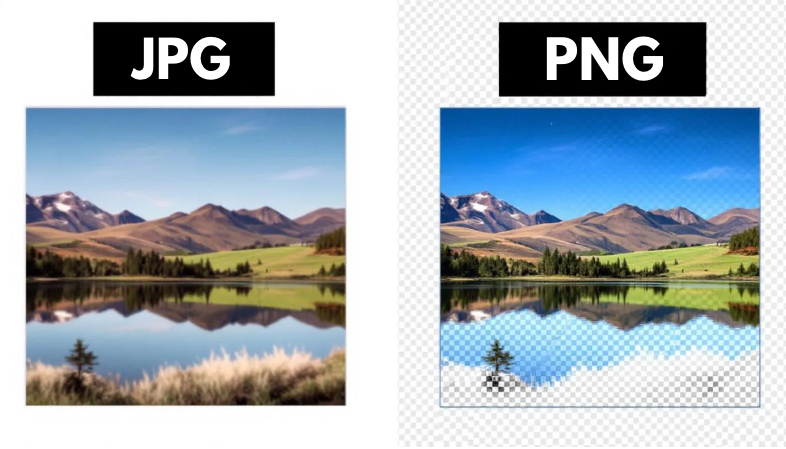
The file format you choose decides how your design looks when printed. Here is how the three most common formats compare:
- PDF: Keeps all your design elements together (text, images, graphics) and looks the same no matter where you open it. PDF is usually the safest and most preferred option for printing.
- JPG: Compresses well and works for photography, but it is not the best fit for designs with lots of text or sharp edges.
- PNG: Supports transparent sections and is common for web use, but it is not recommended for high-quality print.
PDF is the recommended format for most printing projects, since it prints your design as you intended. For a deeper comparison, see our guide to JPG vs PNG for printing.
Print-Ready Quality
For the best-looking results, turn on Canva's grids. These guides keep everything aligned and organized, which makes a real difference in how the design prints.
Keep all important elements, including text, logos, and images, inside the safe zone so they do not get cut off. The safe zone usually sits about ⅛ inch from the edge of the document. For the full picture on this, see our guide to what bleed is in printing.
Before you submit your design, proofread it carefully for errors and typos, and check that your images are high resolution (at least 300 DPI) so they do not print blurry.
Adding Crop Marks and Bleed
A bleed area of 0.125 to 0.25 inches beyond the trim line helps prevent white edges in the final print and accounts for slight cutting variations. Including a bleed of ⅛ inch keeps the look clean after trimming.
Crop marks show the printer where to trim the paper to reach the final size, which produces a neat, precise result. They are helpful, but most online printers do not require them with your print-ready files.
Customizing Export Settings
Here is how to set your export options to get the best quality out of Canva.
Resolution and Color Mode
Pay close attention to resolution and color mode. Choose the right color profile for your project, such as CMYK for professional printing or RGB for digital displays.
Adjust image compression to balance file size against print quality, keeping in mind that higher resolution means clearer images and larger files.
If you want the background on color modes, our guide to RGB vs CMYK explains when to use each.
Note: Like most professional online printing services, we convert your RGB Canva designs to CMYK during printing. The conversion is necessary because online printers cannot use the RGB color information directly from your Canva design.

Exporting Your Design from Canva
Once your design is complete and proofread, it is time to send it for printing. Canva makes this easy by letting you export as a Print PDF using the Download button, which puts your file in the correct format for online printers.
The process is straightforward, but details like file type (PDF), resolution (at least 300 DPI), and color mode (CMYK) make a real difference in the final quality. Double-check your design and settings before you finalize the download.
Canva Design Tip: Canva lets you export your design in several formats, including PDF, JPG, PNG, and SVG.
Here's what to do:
- Click the Share button in the top right corner of your design editor.
- Select Download from the menu to reveal the list of file formats.
- For printing, choose PDF (Print). This option preserves your fonts, images, and layout for professional printing.
Troubleshooting Common Export Issues
Sometimes an error pops up during export. If that happens, here are some common causes to check:
- Errors in the design file, such as missing fonts or images.
- Export settings that are not correct, including file format (PDF) and resolution (300 DPI).
- File size limits. A very complex design may exceed the cap.
- Technical glitches within Canva that interrupt the export.
Tip: Clear your browser cache and cookies, try exporting on a different device or browser, and contact Canva support if the problem continues.
Printing Your Design
With Canva, you can print at home or through a professional online printer.
Choosing an Online Printer Printer
Knowing your printer's requirements, including specs for bleed and crop marks, is important for a professional result.
At Print Cartel, we focus on high-quality prints and offer a range of stock options to match your design. If you are not sure which feature (Spot UV, inline foil) or finish (matte, UV coated) you want, request a free sample packet so you can see and feel the options before you decide.
Design Tip: Use Canva's share access feature to send your design to your printer and keep track of the project.
Print Your Canva Design With Print Cartel
Canva makes it easy to create print-ready files, and the right printer takes it the rest of the way. From business cards to large format, Print Cartel prints your Canva designs with the quality and turnaround your business needs.
Start your order or reach out with questions about your file before you print.
Frequently Asked Questions About Printing From Canva
Can You Print From Canva?
Yes. You can print Canva designs at home or send them to a professional online printer. For the best results, set the correct dimensions, include bleed if your printer requires it, and export as a PDF (Print) at 300 DPI.
What File Format Should I Use to Print From Canva?
Use PDF (Print). It keeps your fonts, images, and layout intact and looks the same wherever it opens, which makes it the safest option for professional printing. JPG and PNG are better suited to web use than high-quality print.
How Do I Make a Canva Design Print-Ready?
Set the correct page size, add bleed if your printer requires it, and keep important elements inside the safe zone about 1/8 inch from the edge. Use images at 300 DPI or higher, then export as a PDF (Print). Most printers convert RGB to CMYK during production.
Why Do My Canva Colors Look Different When Printed?
Screens display color in RGB, while printers use CMYK. When your file converts to CMYK for printing, some colors shift slightly. To get closer to what you expect, design with print colors in mind and ask your printer about color proofing.