
Key Takeaways
AI design tools are useful for getting ideas on paper fast, but the files they produce almost never come out print ready.
- AI tools are built for screens, not print. Most output files at 72 to 96 DPI, which looks fine on a monitor but falls apart when sent to a commercial printer.
- Resolution is the most common problem. Print requires at least 300 DPI at the final size. An image that looks sharp on your phone can come out soft and pixelated on a business card.
- Missing bleed and wrong color mode are close behind. AI generated files are typically in RGB with no bleed, and both need to be corrected before printing.
- The fix is not complicated, but it does require a few extra steps. Checking your file before you submit it can save you from a reprint.
- If the file is not coming together, Print Cartel can help. Getting the file right and getting it printed in one place saves time and takes the guesswork out of the process.
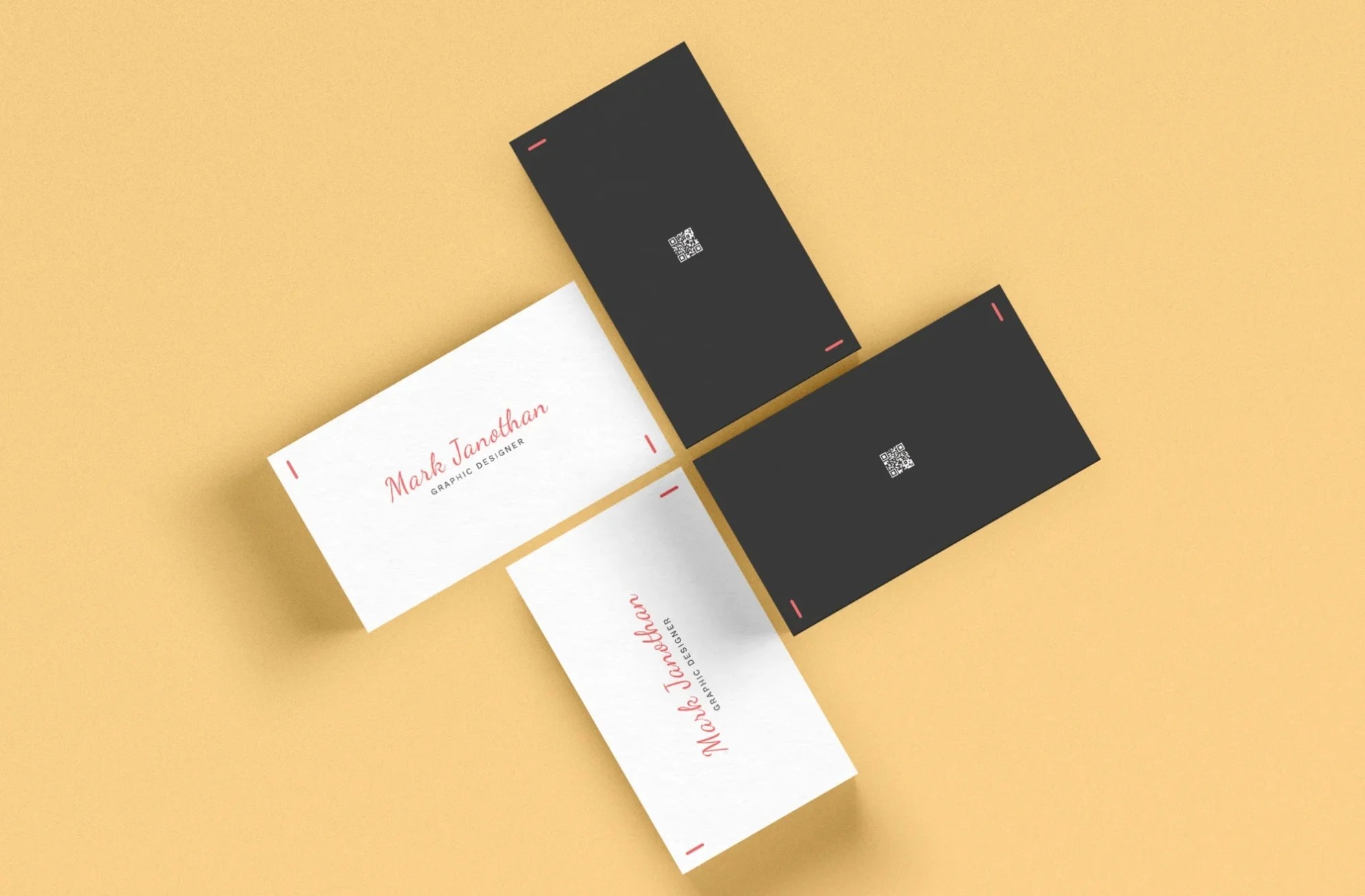
AI tools have made it easier than ever to put together a business card, a flyer, or a postcard without hiring a designer. You type a prompt, adjust a few things, download the file, and send it to a printer.
That last step is where things go wrong.
The file looks great on screen. But screens are forgiving. A low resolution image that looks sharp on a phone can come out blurry or pixelated in print.
Add in missing bleed, the wrong color mode, and text that's too close to the edge, and you've got a file that's going to cause problems before it ever hits the press.
Find out why AI generated files often fall short for print, what to check before you submit anything, and how to fix common printing mistakes.
What Are AI Design Tools Good At?
AI tools are fast, accessible, and useful for getting a concept together quickly. They're built to produce visuals that look good on a screen, not files that are ready for a commercial printer.
Tools like Canva, Adobe Firefly, and Midjourney are great for social media posts, presentations, and digital ads. For those uses, the files work just fine.
The problem starts when you send a file built for a screen to a printer. The two environments have very different requirements, and most AI tools are not set up to meet print standards out of the box.
Why Don't AI Files Work for Print?
AI generated files fail in print for a few consistent reasons. Understanding each one makes it much easier to catch and fix them before you submit anything.
Resolution Is Too Low
Print requires at least 300 DPI at the actual print size. Most AI tools produce files at 72 to 96 DPI, which is screen resolution, not print resolution. This is the most common issue.
The gap matters a lot for small pieces. A business card or postcard is held in someone's hand and viewed up close, so any softness is immediately obvious.
Larger format pieces viewed from ten feet away can sometimes work at 150 to 200 DPI, but for anything a person will hold or read at arm's length, 300 DPI is the floor.
The Color Mode Is Wrong
AI generated designs are typically in RGB, which is built for screens. Print uses CMYK, and colors that look vibrant on a monitor can shift significantly when converted.
Blues can go purple. Bright oranges can come back muddy. Setting up in CMYK from the start keeps colors as close as possible to what you expect. Here is more information about RGB vs CMYK.
There Is No Bleed
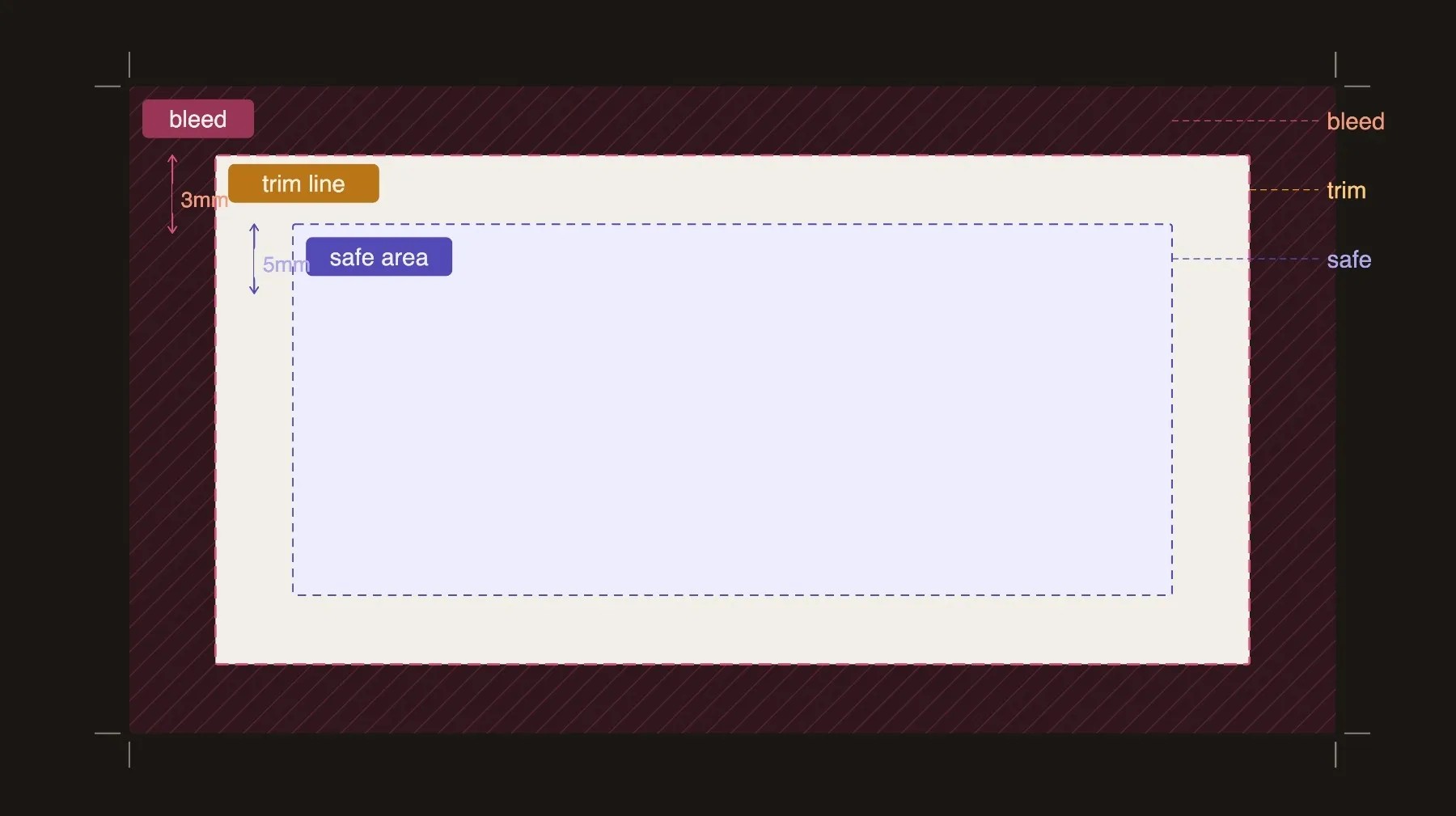
Bleed is the extra border of color or image that extends past the trim edge of a print piece. Without bleed, any background color or image that runs to the edge will likely show a thin white line after trimming.
AI tools don't add bleed. The file comes in at the exact finished size. Most commercial printers require at least 0.125 inches of bleed on all sides. Find more details on how to set bleed up correctly.
Gradients Can Come Out Banded
AI files often include smooth color transitions in backgrounds and fades. On screen they look smooth, but in print they can show up as visible steps of color instead of a clean blend.
This happens because of compression and limited color depth in the file. It's most noticeable on larger pieces where the gradient covers a lot of physical space.
If your design has any fade or gradient background, zoom in and check the transition carefully before submitting.
The File Format Is Not Right
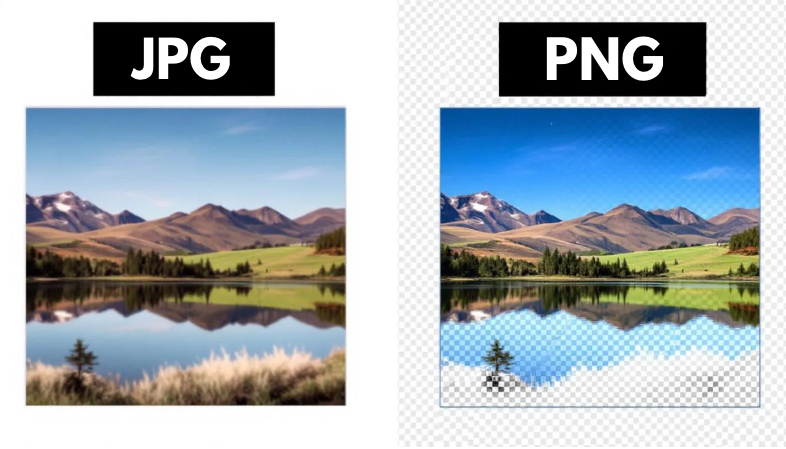
AI tools typically output JPG or PNG files, neither of which is the standard for commercial printing.
JPG uses lossy compression, which discards image data and softens fine detail. PNG is better but still only a starting point. Most commercial printers require a high resolution PDF or a TIFF file set up in CMYK at the correct resolution.
Text and Fine Details Can Look Off
AI generated text sometimes has subtle distortions that are not obvious on screen but become more noticeable in print.
Fine lines, small type, and intricate details are worth zooming in on closely before submitting anything. If it looks slightly off on screen at 100% zoom, it will look worse on paper.
How Do You Check Your File Before Sending It to Print?
A quick review before you submit can catch most of the problems above. Running through this checklist takes about five minutes and can save you from a reprint.
- Check the resolution. For a standard business card at 3.5" x 2", you need at least 1050 x 600 pixels to hit 300 DPI. If the file is smaller than that, it will print soft. Find more details in the guide to print-ready files. It covers how to check this before submitting.
- Check the color mode. Open the file in Photoshop or Preview on a Mac. If it shows RGB, convert it to CMYK before printing.
- Check for bleed. If your design has any color or image that runs to the edge, you need bleed. If the file sits at the exact finished size with no extra border, it is missing bleed.
- Check for gradient banding. If your design has any fade or color transition, zoom in and check whether the colors blend smoothly or step. Subtle banding on screen can be obvious in print, especially at larger sizes.
- Zoom in on text and details. View the file at 100% zoom. If small text or fine details look soft or slightly off at that size, they will look worse in print.
- Check the file format. A press-ready PDF is the standard. If you're working with a JPG or PNG from an AI tool, bring it into Illustrator, InDesign, or Canva's print export settings to get it into the right format.
How Do You Fix a Low-Res AI File?
You can't fully recover resolution that was never there. Upscaling a low resolution image adds pixels, but it doesn't add real detail. The result is usually a smoother blur rather than a sharper image.
A few things can help. If the image is close to the required resolution, upscaling tools like Topaz Gigapixel or Adobe's Super Resolution can fill in detail without making it look artificially smoothed. They work best when the original file is not too far below the target.
If the image is well under the required resolution, the better path is to go back to the AI tool and generate a higher resolution output. Some tools let you set output dimensions; others cap at a fixed size.
For text heavy items like business cards, the cleanest fix is to bring the AI image into a design program and rebuild the text as live, editable type.
Live text is always sharp in print regardless of image resolution. This typesetting guide covers how to set type correctly for a print piece.
What's the Best Way to Get a Print Ready Result From AI?
The cleanest path to a print-ready file depends on how you're using AI in the first place. There are two approaches that work consistently, and both are worth knowing.
The first is to use a platform built specifically for print. Tools designed for business card creation let you export high-resolution files at 300 DPI in PDF or PNG format.
Since the output is built around print specs from the start, you avoid most of the resolution and format issues that come from general-purpose AI tools.
The second is a hybrid approach, and it's the safest method for anyone who wants creative control. Use AI to generate a high-resolution background texture, pattern, or graphic element.
Then bring that image into a layout tool like Canva, Adobe Illustrator, or Affinity Publisher, add your text manually as live type, and export as a print-ready PDF with 0.125 inch bleed at 300 DPI.
You get the visual output AI is good at, without relying on it to handle the parts it tends to get wrong.
When Should You Hand the File Off to a Professional?
Not every file problem is worth troubleshooting on your own. If the design needs significant changes or the resolution can't be recovered, a professional printing company can often fix it faster than you can figure out the tools.
This matters more when the stakes are higher. A business card that comes back blurry is frustrating but fixable. A banner for a trade show or a stack of postcards for a direct mail campaign is a bigger investment. Getting the file right before printing matters more when more is on the line.
Print Cartel can review your file and help you get it print ready before anything goes to press. If you're not sure whether your AI designed file will print well, reaching out before you submit is a lot easier than dealing with a reprint.
The Bottom Line
AI design tools have made it easier to put something together fast. The gap they haven't closed yet is the one between a file that looks good on screen and one that prints the way you expected.
AI tools often skip resolution, color mode, bleed, gradient banding, and file format. Catching those issues before you submit is straightforward once you know what to look for.
If you're not sure whether your file is ready, or you just want someone else to handle it, Print Cartel can help you get from design to finished printed piece without the guesswork.
Frequently Asked Questions About AI Files and Print
Can You Print Directly From an AI Generated File?
You can try, but most AI generated files are not set up for commercial printing. They're typically low resolution, in the wrong color mode, and missing bleed. Running through a quick checklist before submitting catches most issues before they become a problem.
What Resolution Do You Need for Print?
Most commercial printers require at least 300 DPI at the final print size. For large format pieces viewed from a distance, 150 to 200 DPI can sometimes work. For anything held in someone's hand, 300 DPI is the minimum. Check the pixel dimensions of your file against the finished size before submitting.
What Is Bleed and Why Does It Matter?
Bleed is the extra border of color or image that extends past the trim edge of the finished piece. Without it, design elements that run to the edge can show a thin white line after trimming. Most printers require at least 0.125 inches of bleed on all sides.
What File Format Should You Use for Print?
A high resolution PDF is the standard for most commercial printers. If you're working with a JPG or PNG from an AI tool, bring it into a design program and export it as a print-ready PDF before submitting.
Ready to Get Your Print Files Right?
If you designed something in an AI tool and want to make sure it prints the way it looks on screen, Print Cartel can help. From file review to finished print, get in touch with Print Cartel and skip the guesswork.